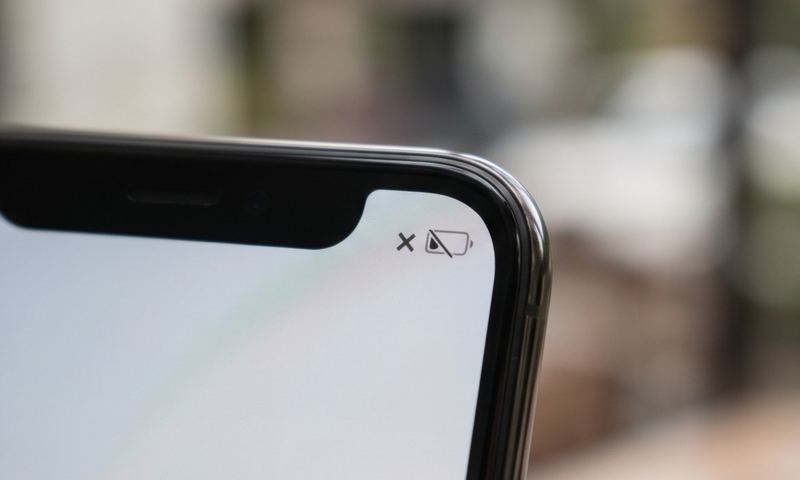
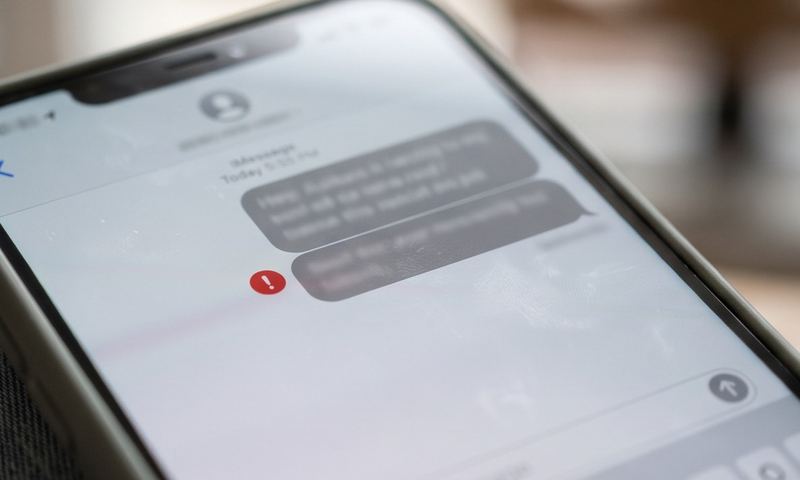
You've got a SIM in, you're not in a dead zone, and your phone still refuses to find a network — just "No Service," or the more specific "Not registered on network." It's one of the more alarming errors a phone can show, because it looks like a hardware problem. Most of the time it isn't.
Quick answer
"Not registered on network" almost always means your SIM can't authenticate with the carrier's network — usually after a SIM swap, an eSIM transfer, travel, or an account change. Re-seating the SIM, toggling Airplane Mode, and manually selecting your network in Settings fixes it in the large majority of cases; if none of that works, it's an APN or account-side issue.
Why This Happens
Your phone talks to the cell tower in two stages. First it has to physically find a signal and "register" with the network — this is a handshake where the tower confirms your SIM is valid and allowed on that network. Only after that handshake succeeds does your phone get bars, calling, and data. "Not registered on network" means that first handshake is failing, which is a different (and usually easier) problem than "I have bars but no data."
The most common trigger is anything that changes your SIM's relationship with the network: swapping a physical SIM into a new phone, activating an eSIM, switching carriers, or traveling somewhere your carrier has a roaming agreement that hasn't synced yet. The second most common cause is the phone being manually locked to the wrong network mode or a stale network selection cached from a dead zone.
Less often, it's an account-side problem — a SIM that hasn't been fully activated, a port-in that's still processing, or a suspended line — none of which will be fixable from the phone itself, which is why step order matters: rule out the phone first, then the SIM, then the account.
1
Toggle Airplane Mode. Turn it on, wait a full 15 seconds, then turn it off. This forces your phone to drop its current (possibly stuck) network registration and start the handshake over from scratch. This alone resolves a large share of "Not registered" errors.
2
Restart the phone. A restart clears the baseband's cached network state, which can get stuck after a dead zone, a dropped tower handoff, or a software update.
3
Re-seat the SIM card. Power off, remove the SIM tray, check the card is clean and fully seated, and reinsert it. A SIM that's a fraction of a millimeter out of place produces exactly this symptom and nothing else.
4
Manually select your network. On Android: Settings → Network & Internet → SIMs → Network → Select Network, then choose manually instead of automatically. On iPhone: Settings → Cellular → Network Selection → turn off Automatic and pick your carrier from the list. If your carrier doesn't appear, that's a strong sign the problem is on the account side, not the phone.
5
Check your APN settings. Registration can succeed and data still fail silently with the wrong APN, which some phones misreport as a general network error. Search your exact carrier's APN values and confirm they match — particularly after an eSIM install or carrier switch.
6
Confirm the SIM or eSIM is actually active. Log into your carrier's app or website (from another device, or call support) to confirm the line is active and not pending activation, suspended for non-payment, or mid-port from another carrier.
7
Update carrier settings. On iPhone, Settings → General → About will prompt you if a carrier settings update is available — these quietly fix exactly this class of registration bug. On Android, check for a system update under Settings → System → System Update.
8
Reset network settings as a last resort. This wipes saved Wi-Fi passwords and Bluetooth pairings, so treat it as a final step: iPhone — Settings → General → Transfer or Reset iPhone → Reset → Reset Network Settings. Android — Settings → System → Reset options → Reset Wi-Fi, mobile & Bluetooth.
If a Reset Doesn't Fix It
If you've worked through every step above and you're still staring at "Not registered on network," the phone itself is very likely not the problem anymore — at that point it's worth confirming the device isn't the real bottleneck at all. If you recently bought the phone used or unlocked it yourself, it's worth double-checking the exact reset and unlock steps for your specific model rather than guessing from a generic menu path; unlockandreset.com has device-specific instructions that go further than what's in your phone's own settings menu.
And if this keeps happening every time you switch SIMs or travel, it's worth confirming your phone actually supports the network bands your carrier uses in that situation — a phone built for one region's LTE bands can register inconsistently on another's. gsmfox.com has full band and network compatibility specs you can check against your carrier's requirements before assuming it's a settings problem.
Still stuck?
Find your exact carrier's APN settings
Search 1,100+ verified carrier configurations across 210 countries.
Is "Not registered on network" the same as "No Service"?
They're closely related — "Not registered on network" is the more specific, technical version of the same underlying failure that "No Service" describes generically. The fixes are the same.
Can a bad SIM card cause this permanently?
Yes. SIM cards do fail — a cracked, worn, or water-damaged chip can register intermittently or not at all. If re-seating doesn't help and another phone also fails with the same SIM, ask your carrier for a free replacement SIM.
Why does this only happen in certain locations?
If it's location-specific, it's usually a coverage gap for your carrier at that spot rather than a phone problem — try manually selecting a different available network (even a roaming one) to confirm signal exists there at all.
Does a factory reset fix this?
Sometimes, but it's a heavier step than this error usually needs — work through SIM re-seating, manual network selection, and an APN check first. If you do end up needing a full reset, look up the exact steps for your model rather than a generic sequence, since menu paths vary by brand.